Guide
How to Organize Mac Files
A useful folder is one you can explain without opening it. This guide shows a small structure for personal and work files on a Mac.
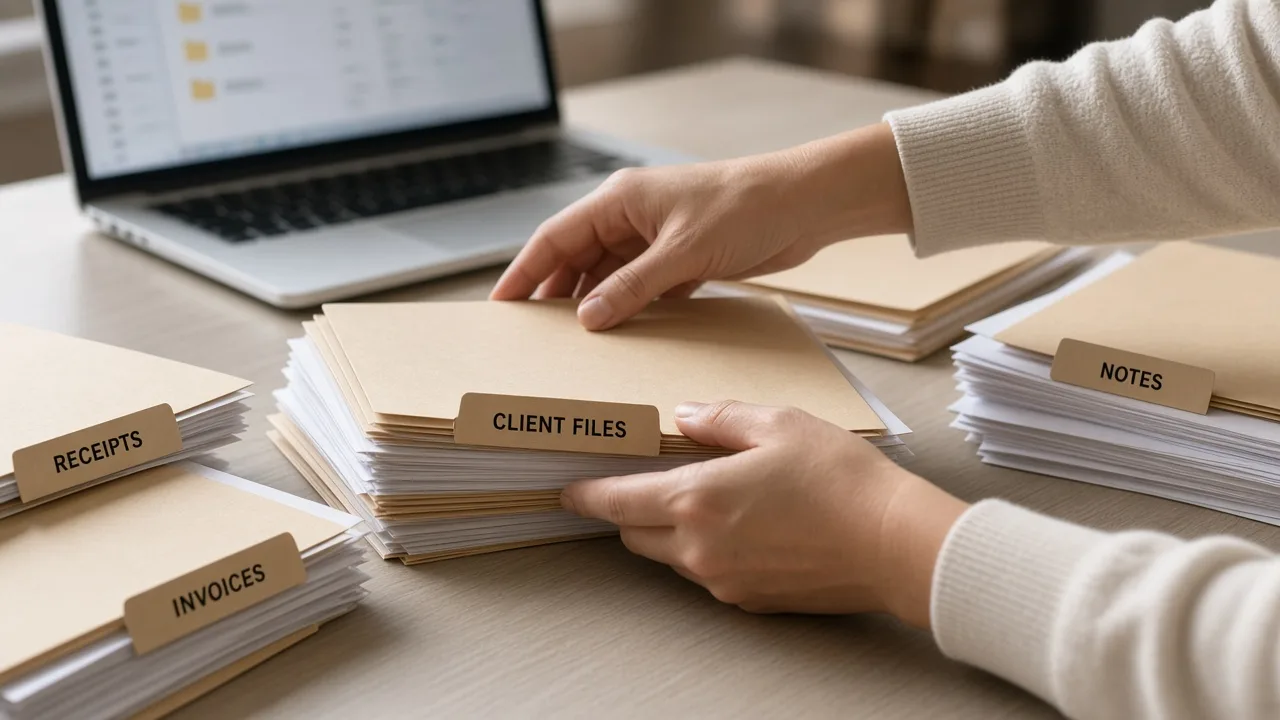
Mac file organization is a naming decision, then a move. It is not a repair, and it is not a cleaner app. Start with the files you created: documents, exports, and downloads that landed in the wrong place.
Give each folder one job
A folder that holds “everything from 2024” becomes another pile. A folder that holds one client, one event, or one household topic stays searchable. Example names that stay readable later:
- Work / Northline / 2026 invoices for a client’s current paperwork
- Home / Insurance for policies you might need again
- Archive / Finished projects for work you do not open weekly
Put the year or the client in the name when those are how you search. Avoid names such as New folder,final final, and misc.
Separate current work from older records
- Create a Current folder for files you still edit.
- Create an Archive folder for finished material you want to keep.
- Create a Review folder for files you do not recognize yet.
- Move one project at a time. Leave the Review folder alone until you can name what is in it.
Unidentified files stay. Deleting them because the name looks old is how people lose a contract or a scan they still need. If you later want a copy removed, that is a separate decision, after a backup.
An example for a mixed desktop
Suppose the desktop holds a PDF proposal, three screenshots, and a spreadsheet of expenses. Move the proposal into the client’s Current folder, the screenshots into a dated set for that meeting, and the spreadsheet into Home or the business books—whichever matches the money it records. The desktop can then hold only what you are using this week. The same idea is taught inMac Digital Workspace Training when the pile is larger than one afternoon.
Safety
- Work in your user folders: Desktop, Documents, Downloads, and folders you created. Leave System and Library system files where macOS put them.
- Make a backup you can restore before a large move. Time Machine, or a copy on a drive you already use, is enough.
- Emptying the Trash is not reversible from the Trash. Do that only after you have checked the names.
If the collection is bigger than you want to sort from this article alone,Mac File Organization Training explains a plan you apply yourself. MacStartup does not move or delete files on your Mac. Related reading:how to clean up Mac storage andhow to organize Mac photos.