Guide
How to Clean Up Mac Storage
Mac storage cleanup, in this guide, means looking at space used by files you saved. It does not mean deleting system folders or installing a cleaner.
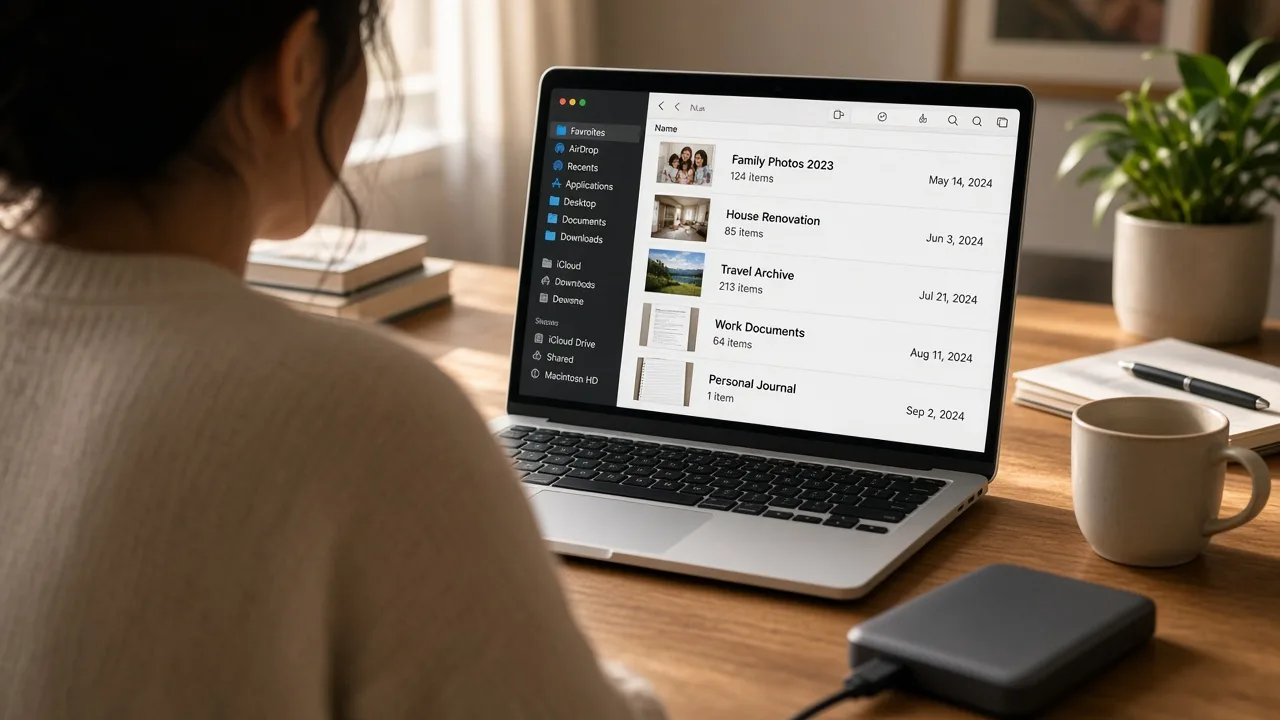
macOS can show categories of storage. It cannot tell a family photo from a leftover export. Use the built-in view to see where space went, then decide only among files you recognize.
Open the built-in storage view
On current macOS versions, open System Settings, choose General, thenStorage. Older versions use the Apple menu, About This Mac, thenStorage. The categories are a map, not a to-do list. Documents, photos, and applications are different kinds of data. This guide stays with documents, photos, downloads, and other files in your user folders.
Find large files you created
- In Finder, open Documents, Desktop, or Downloads.
- Switch to list view and sort by size. For folders, choose View > Show View Options and enable Calculate All Sizes if the size column stays blank.
- Note the largest items you recognize: video exports, disk images you already installed, and old project folders.
- Move keepers into an archive folder. Leave anything you cannot name in a Review folder.
Do not delete items inside /System or other folders macOS uses to run. A large system folder is not spare space you can reclaim by hand.
Downloads, copies, and everyday clutter
Downloads often hold installers and duplicates of files that also live in Documents. Compare names and dates before you remove a copy. Two files with the same name in different folders are not always identical. Open both, or compare size and date, before you treat one as extra.
The Trash holds files only until you empty it. It is not a backup. Copy anything important to Time Machine or another drive you already trust before you remove it.
What this does not do
Cleaning user files does not repair macOS, remove malware, or promise a faster computer. Low free space can make a Mac feel tight, but organizing folders is a filing result. For personalized guidance you apply yourself, seeMac Storage Management Guidance. Related steps are inhow to free up space on Mac andhow to organize Mac files.