Training

Mac Digital Workspace Training

A desktop is a temporary surface. This training helps you decide what should not live there.
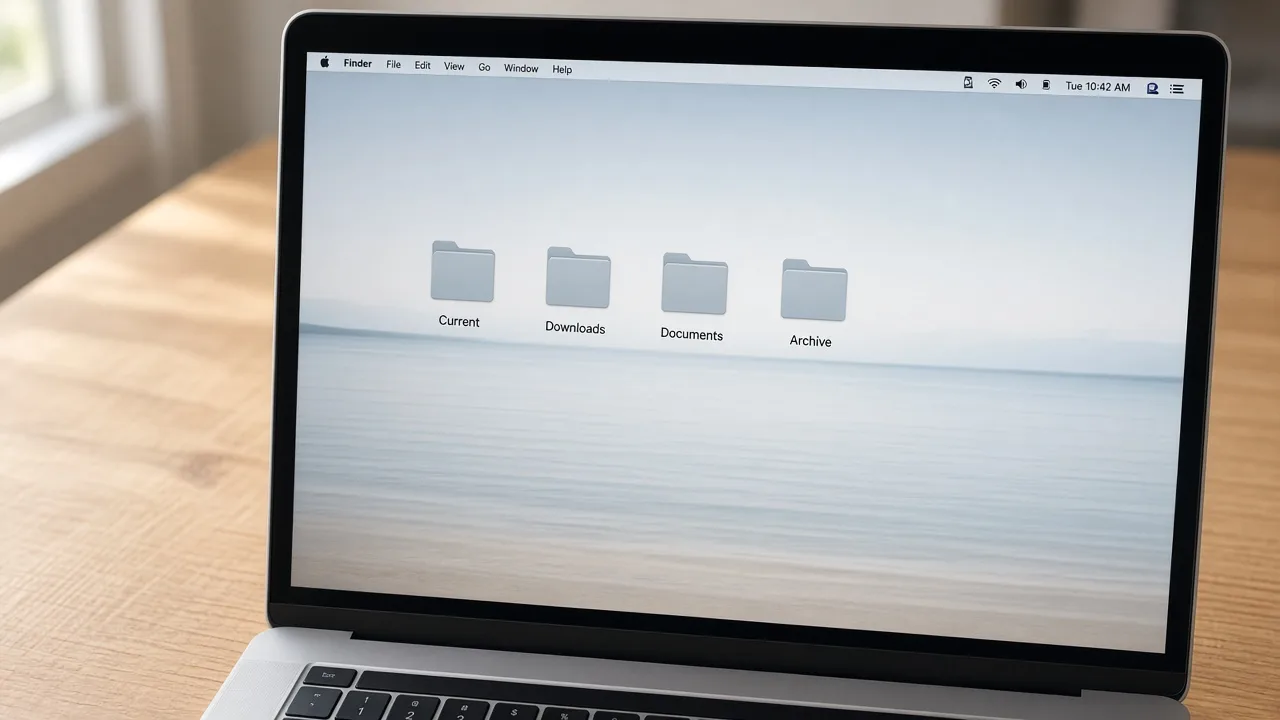
The photograph shows an example desktop with a few folders. It is not a capture of your screen and not a MacStartup app.

Desktop clutter is usually a folder problem

Digital workspace training covers the places people drop files when they are busy: the desktop, Downloads, and a Documents folder that became a second desktop. You learn a few destinations and how to move items into them yourself.

Screenshots, installers, and half-finished exports often share that space with important scans. They should not be treated as one pile. Nothing is removed because it happened to sit on the desktop. MacStartup does not clear the desktop for you.

What a crowded desktop usually hides

  • Screenshots cover the files you meant to keep visible
  • Downloads holds both installers and the only copy of a receipt
  • Project folders were never created, so the desktop became the project
  • Two people use one Mac and share the same drop zone

What workspace training can include

  • A short list of folders that can replace the desktop as storage
  • A way to sort desktop and Downloads items into those folders
  • A holding folder for things you still need to identify
  • A reminder that you delete a desktop file only when you choose to
  • Follow-up inside an agreed scope

How a workspace training request proceeds

  1. 1

    Describe the daily folders

    Explain the desktop and the folders you open every week.

  2. 2

    Separate drop zones from archives

    Downloads can stay a landing place if finished work moves on.

  3. 3

    Review a visible plan

    You see where a group of files would go before you move them.

  4. 4

    Leave unknowns in place

    You keep unidentified files in a review folder instead of deleting them.

The photograph shows an example desktop with a few folders. It is not a capture of your screen and not a MacStartup app.

What a calmer desktop is for

The photograph shows an example desktop with a few folders. It is not a capture of your screen and not a MacStartup app.

  • Show current items instead of last year’s exports
  • Empty Downloads of finished work without guessing
  • Give a shared Mac separate landing folders
  • Keep a habit small enough to repeat

Before you remove a file

  • A file on the desktop may be the only copy. It is not junk by location.
  • Back up before you clear a large desktop yourself.
  • This is not remote technical support, virus removal, or a repair visit.

Questions about this training

Practical limits of the guidance, including what is not included.

Does MacStartup wipe the desktop?

No. You move files according to a plan you understand. You also decide any deletion.

Can Downloads stay as the inbox?

Yes. Many people keep Downloads as a landing folder and file completed items elsewhere.

Is this the same as a cleaner app?

No. Training teaches a folder layout. An application that offers to sweep files is a different product.

Related training

Request Mac Digital Workspace Training

Describe what you want to learn. Submitting the form does not confirm a booking, and MacStartup does not organize files on your Mac.