Guide
How to Organize Mac Photos
Photographs are easier to find when the folder matches the event. Duplicates stay until you have compared the copies.
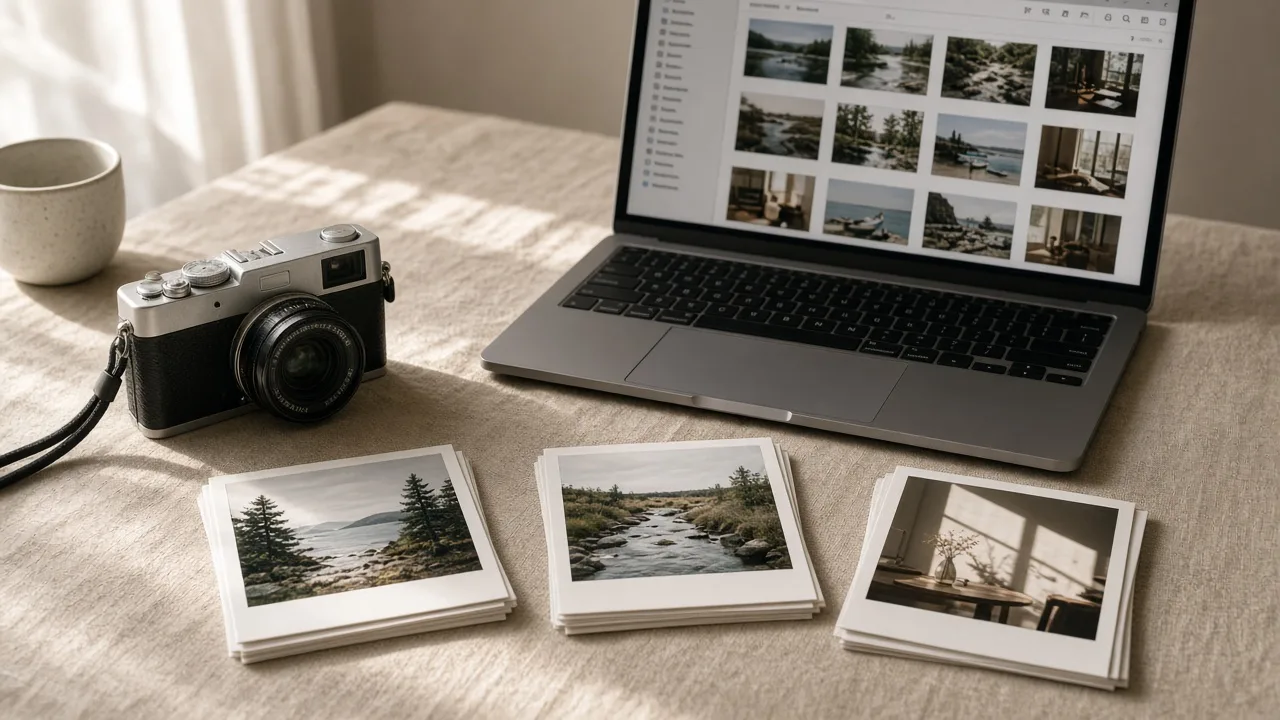
Photo organization on a Mac is usually a mix of the Photos library and loose files in Pictures, Desktop, or Downloads. Those are different places. Moving a file in Finder does not rearrange an album inside the Photos app, and the reverse is also true.
Choose a grouping you will still understand
Pick one primary rule and stick to it for that collection:
- Year, then event for a household: 2025 / June trip
- Client, then date for a business: Harbor Studio / 2026-03-12
- Project when the pictures belong to one job, not a calendar
Put edited exports in a subfolder named Edited, next to the originals, instead of replacing the camera files. A name like IMG_2044 copy is a clue to compare, not a reason to delete.
Compare lookalikes
- Open both images, or compare size, date, and dimensions in Finder’s Get Info.
- Keep the version you would actually send or print.
- If one file is a crop and the other is the full frame, keep both until the project is finished.
- Only then decide whether the extra export can go. That decision is yours.
Recent macOS versions include a duplicates view in the Photos app. It is not on every older release, and it can flag similar pictures that are not the same frame. Treat it as a suggestion. Confirm each pair.
Loose files versus the Photos library
Screenshots and exports from mail often sit in Downloads while the same moment is already in Photos. Check both before you remove the loose file. If you use iCloud Photos, a file you delete from the library can also leave your other devices. Read the prompt macOS shows before you confirm.
Safety
- Back up before a large photo sort. A photo library is difficult to reconstruct from memory.
- Do not delete photos from a camera card until the copies on the Mac open and a backup exists.
- Leave system and application files untouched. This work is only your pictures.
A larger library can be practiced with training. SeeMac Photo Organization Training. You decide what to remove. MacStartup does not edit your library. For documents that arrived in the same download, seehow to organize Mac files.